When most people hear “AI translation,” they think ChatGPT or another large language model. The problem is that LLMs are designed for conversations, not documents. They cut off halfway through a file, scramble formatting, or just skip entire sections. If you’ve ever tried to push a long PDF through one, you know it feels like babysitting a very unreliable intern.
So how do you translate a Word document with AI, then? By using a proper AI file translator like Taia. Instead of treating your text sentence by sentence, it processes the whole file, keeps your layouts and formatting, and gives you a translated document you can actually use.
That’s what Taia was built for: upload a Word or PDF, pick a language, and download it back fully translated in any of 189 languages.
The Right Way to Translate Documents with AI
Here’s how to translate a Word document or PDF with AI properly — step by step:
Step 1: Pick an AI Document Translator (Not a LLM!)
LLMs like ChatGPT or Claude are designed for conversations, not documents. They don’t handle file structures — which is why they often skip tables, reorder sections, or even stop translating halfway through a long file. You’ll spend more time fixing the output than you saved.
A dedicated AI document translator like Taia is built for files. It reads the whole document, keeps formatting intact, and returns a usable Word or PDF you can download immediately.
Step 2: Upload Your File
Forget copy-pasting. With Taia’s AI translator, you just drag and drop your Word or PDF file into the platform. It doesn’t matter if it’s a contract, a manual, or a presentation — you can upload it as is.
If you upload a PDF file, Taia will convert it to Word and deliver it back to you as a fully editable DOCX file. That means you can edit translated content directly, unlike locked PDFs from free translation tools.
Step 3: Choose Your Language(s)
Need one translation or ten? Select the language you need — or multiple if you’re working across markets. Taia’s AI translates the full document in seconds to any selection of 189 languages, so you don’t have to process each translation one by one.
This is especially useful for marketing localization campaigns or ecommerce content that needs to launch simultaneously across multiple regions.
Step 4 (Optional): Edit Your Translation In-App Before Downloading
Pro users can tweak translations inside Taia before exporting. You can apply translation memory and glossaries to lock in consistent terminology — something LLM tools can’t do. This saves you from fixing awkward terms later in Word or PDF.
Learn more about building effective translation glossaries to maintain brand consistency across all your documents.
Step 5: Download and Review
Once you’re done, download your translated file with the formatting preserved. For day-to-day documents, that’s all you need.
For critical content — contracts, marketing campaigns, legal text — you can request a professional human review inside Taia. The app calculates the cost by word count, you approve it, and our ISO 17100-certified project managers take it from there. Turnaround is typically 24-48 hours.
Translate DOCX, PDF, and more with AI, instantly.
Try Taia free with 5,000 words per month. No credit card required.
Try Taia Free →Why Use Taia Instead of Other AI File Translators?
Taia isn’t just another translation tool — it’s built specifically for document translation with features that actually matter:
- No broken formatting — unlike free or more popular tools, your Word doc comes back looking largely the same, just in another language. (The same is not always true for PDFs, here’s why).
- Understands context — translates based on the flow of your entire document, not sentence by sentence.
- Reuse your past translations (Pro) — translation memory and glossaries keep terminology consistent across projects.
- Edit before you export (Pro) — adjust the translation directly in-app using our translation management system instead of fixing it later in Word or PDF.
- Free plan included — translate up to 5,000 words per month instantly. No credit card required.
- Human review when needed — request a professional localization service check right inside the app. The system gives you a word-based quote, you confirm, and our project managers assign it to an ISO-certified translator.
- 65+ file formats supported — from Word and PDF to Excel, PowerPoint, JSON, XML, HTML, and more.
Convert PDF to Word Automatically Before Translating
Free tools often flatten PDFs into unreadable, low-quality exports. We tested this with Google Translate and DeepL — both delivered locked files that looked compressed and broke layouts. Taia instead converts your PDF into Word, translates it, and delivers it back fully editable.
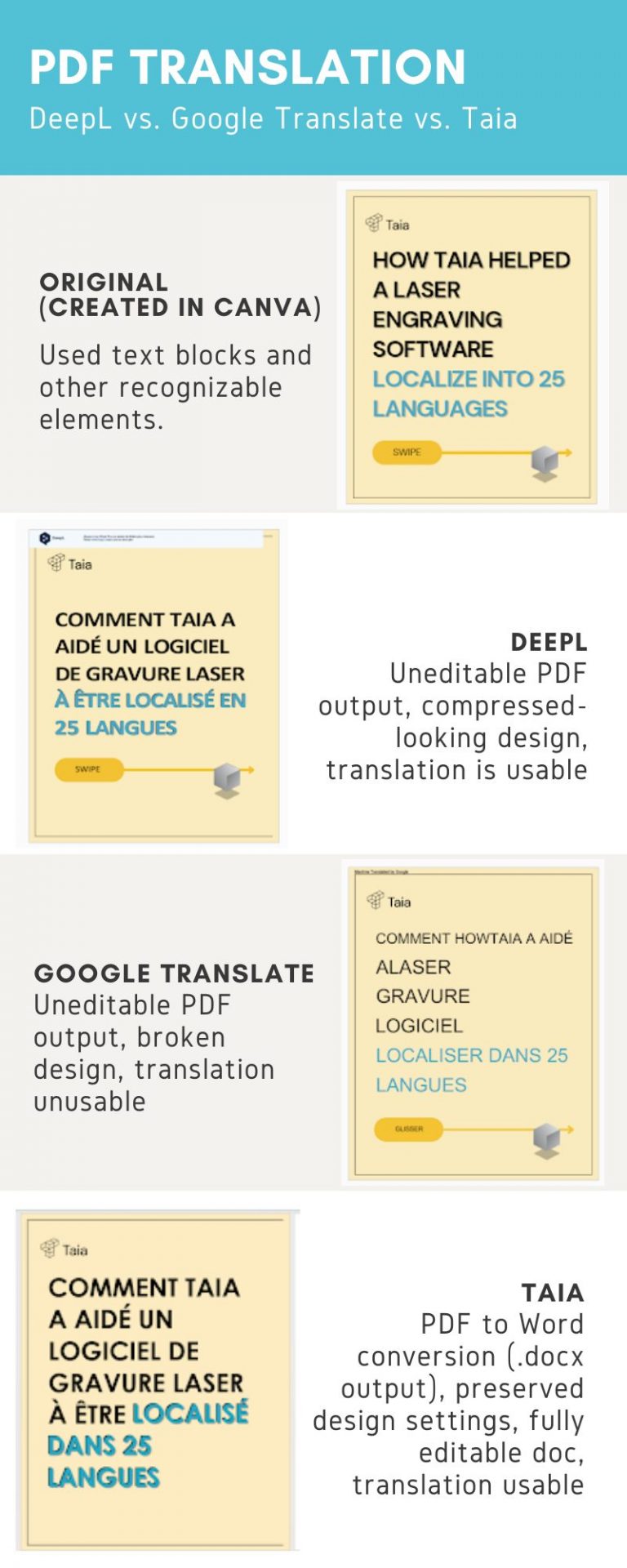
Taia is the only one that converted the PDF into a fully editable Word document.
You might notice the swipe button “disappeared”, but actually – it just jumped to the next page. Since it’s a Word document, you can edit everything, including the button, directly inside it. Also, it actually recognized text and font settings, not compressing it into a cartoonish-looking version of the original, like DeepL did. Here’s what that looks like in practice:
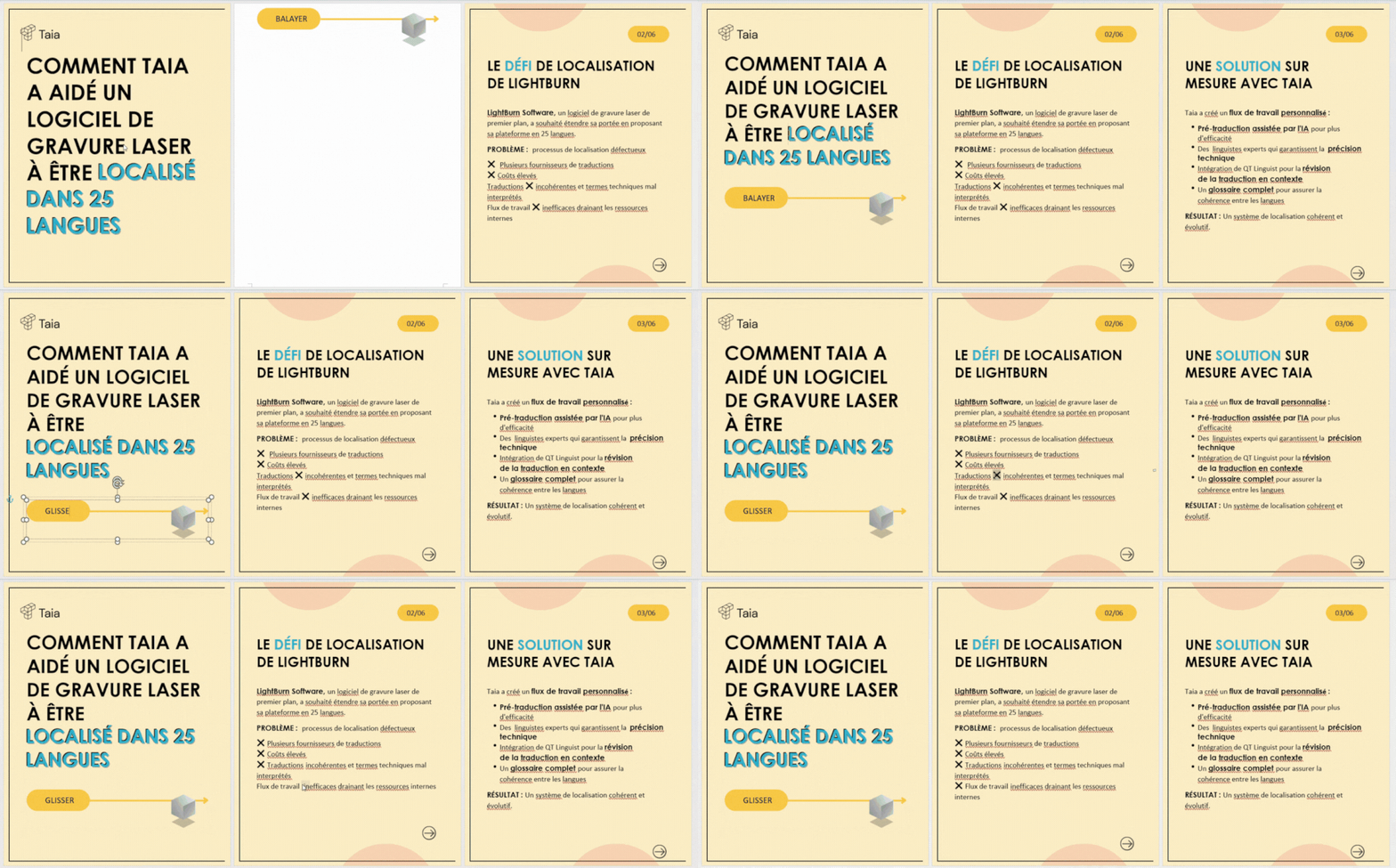
Full editing capabilities — modify text, images, and layout elements directly in the converted Word document.
If you’re looking for the simplest way to translate a document with AI, Taia does the job in just a few clicks. 5,000 words per month available for free.
Why Traditional Tools Fail at Document Translation
Most people try to translate documents with the wrong tools. Here’s what typically fails — and why:
LLMs (ChatGPT, Claude)
- Cuts off long documents
- Loses formatting completely
- No translation memory
- Requires manual copy-paste
- Invents or omits content
- Can’t handle tables or complex layouts
Google Translate / DeepL
- Compresses PDF quality
- Limited file type support (10-15 formats)
- No editing capabilities
- Locked output files
- Sentence-by-sentence translation loses context
- No collaboration features
Taia Document Translator
- Preserves formatting perfectly
- Converts PDF to editable Word
- Translation memory & glossaries
- In-app editing (Pro)
- Context-aware translation
- 65+ file formats supported
Learn more about why you can’t translate PDFs with AI using traditional tools, and how Taia compares to DeepL and Google Translate for document translation.
Best Practices for AI Document Translation
Based on thousands of translated documents, here’s what actually works:
1. Use the Right Tool for the Job
Don’t force LLMs to do document translation. Use purpose-built tools like Taia’s AI translator that understand file structures and preserve formatting.
If you’re translating marketing materials or ecommerce content, you need tools that maintain brand consistency across languages.
2. Set Up Translation Memory
For recurring content, enable translation memory to maintain consistency across documents. This is especially critical for:
- Product documentation that gets updated regularly
- Marketing campaigns with consistent messaging
- Legal documents with standard clauses
- Technical manuals with repeated terminology
Learn about the 9 things that make translation difficult and how translation memory helps solve them.
3. Create Glossaries
Lock in key terminology for your brand, products, or industry-specific terms. Read our guide on translation glossary best practices to learn how to build effective glossaries.
For industries with specialized terminology, check out our comprehensive glossary of localization terms.
4. Review Critical Content
For legal, financial, or customer-facing documents, always add professional human review. Taia makes this easy with in-app quotes and ISO 17100-certified translators.
Want to know if you need human review? Ask yourself 10 questions before choosing a translation partner.
5. Test with Your Actual Files
Before committing to any tool, upload a real document you need translated to see how it handles your specific content. Try Taia free with 5,000 words per month to test with your own files.
6. Optimize Your Source Content
The better your source document, the better your translation. Follow these tips:
- Use clear, simple language
- Avoid idioms and slang
- Structure content with proper headings
- Use consistent terminology throughout
- Break up long sentences
Learn more about Globalization, Internationalization, Localization, and Translation (GILT) to understand how to prepare content for translation.
Common Document Translation Mistakes to Avoid
Based on real customer experiences, here are the most common mistakes:
❌ Copying and pasting into ChatGPT — You’ll lose all formatting, tables get scrambled, and long documents get cut off mid-translation.
❌ Using Google Translate for business documents — Works for quick reference, but formatting breaks, terminology is inconsistent, and there’s no way to edit before downloading.
❌ Not setting up glossaries — Your product names, brand terms, and industry jargon will be translated inconsistently across documents.
❌ Skipping human review for legal documents — AI translation is great for speed, but legal contracts need human expertise to ensure accuracy.
❌ Translating PDFs with scanned text — If your PDF is a scanned image, you need OCR first. Taia handles this automatically.
❌ Not testing the output — Always review the translated document in its final format before distributing. Check that tables, images, and layout elements are intact.
Related Resources
Looking for more translation solutions? Check out these guides:
- DeepL vs. Google Translate vs. Taia — Comprehensive comparison of the top 3 AI file translators
- Best DeepL Alternatives — 7 alternatives for enterprise and in-house teams
- Why You Can’t Translate PDFs with AI — Technical explanation of PDF translation challenges
- Translation Memory Explained — How TM saves time and maintains consistency
- AI Translation Services: The Truth — When to use AI vs. human translation
- Professional Localization Services — ISO-certified human review for critical content
- Translation Management System — Collaborate with teams on large translation projects
Frequently Asked Questions
How do I translate a Word document with AI?
Upload your Word document to Taia’s AI translator, select your target language(s), and download the translated file in seconds. Unlike LLMs, Taia preserves formatting, tables, and layout across 189 languages. Free plan includes 5,000 words/month.
Can I translate a PDF with AI while keeping the layout?
Yes, but not with most free tools. Taia automatically converts PDFs to Word, translates them while preserving structure, and delivers fully editable DOCX files. Google Translate and DeepL often flatten PDFs into locked, compressed formats that lose quality.
Read more about why you can’t translate PDFs with AI using traditional tools.
Is there a free AI tool to translate documents?
Taia offers 5,000 free words per month for document translation with formatting preserved. Google Translate and DeepL have free tiers but with limited file support (10-15 formats) and formatting issues. For professional work, Taia’s free plan provides the best balance of quality and features, supporting 65+ file types.
How accurate is AI document translation?
AI document translation accuracy ranges from 3.5-4.5/5 depending on the tool and language pair. Taia scores 4.5/5 by using context-aware translation across your entire document, not just sentence-by-sentence.
For critical content, add professional human review for 5/5 accuracy. Our ISO 17100-certified translators ensure legal, financial, and marketing documents meet professional standards.
Learn about the truth about AI translation services to understand when AI alone is sufficient vs. when human review is needed.
What file types can I translate with AI?
Most AI tools only handle basic text files. Taia supports 65+ file types including:
- Documents: Word (.docx, .doc), PDF, Pages
- Spreadsheets: Excel (.xlsx, .xls), CSV, Numbers
- Presentations: PowerPoint (.pptx, .ppt), Keynote
- Development: JSON, XML, YAML, properties files
- Web: HTML, PHP, Markdown
- Design: InDesign (IDML), SVG
- Subtitles: SRT, VTT, SBV
See the full list of supported file formats on our AI translator page.
How long does it take to translate a Word or PDF with AI?
AI translation is instant for most documents. A 10-page Word document translates in seconds with Taia. LLMs like ChatGPT may take longer and often fail on large files due to token limits.
Human review adds 24-48 hours for professional quality, which is still much faster than traditional translation services (typically 5-7 days).
Is there an AI translator for large documents?
Yes, Taia handles large documents without character limits on paid plans. Free plan includes 5,000 words/month.
LLMs like ChatGPT have token limits (typically 128K tokens = ~96,000 words) and often cut off mid-document, making them unsuitable for large files. DeepL has a 5MB file size limit on free plans.
For enterprise-scale translation projects, check out our Translation Management System for team collaboration.
Can I edit the AI translation before downloading the final file?
Yes, with Taia Pro you can edit translations directly in-app before exporting. Apply translation memory and glossaries to maintain consistency.
Free tools like Google Translate and DeepL don’t offer in-app editing — you have to download first, then fix translations manually in Word or PDF, which is time-consuming and error-prone.
Is my document secure when using an AI translator?
Security varies by tool. Taia is ISO 17100:2015 certified and GDPR compliant. Your content is:
- Not used to train AI models
- Encrypted in transit and at rest
- Processed on secure servers
- Deleted after project completion (upon request)
Free tools like ChatGPT and Google Translate may store your documents for model improvement. Always check data policies before uploading sensitive or proprietary content.
What if I need a professional review of my translated file?
Taia offers optional human review directly in the platform. Here’s how it works:
- Upload your document and get an instant AI translation
- Click “Request Professional Review” in the app
- System quotes by word count (typically $0.08-0.15/word)
- You approve the quote
- ISO 17100-certified translators review and refine
- Turnaround: 24-48 hours for most documents
This hybrid approach gives you speed from AI and accuracy from human experts. Learn what to ask by reading 10 questions to ask your translation partner.
How much does AI document translation cost?
Taia pricing:
- Free plan: 5,000 words/month
- Pay-as-you-go: $0.01-0.03/word for AI translation
- Pro plan: Starting at $99/month for teams (includes translation memory, glossaries, in-app editing)
- Human review: $0.08-0.15/word additional (for critical content)
Compare to alternatives:
- DeepL: €6.99-29.99/month, limited formats
- Google Translate: Free for basic use, no file support on free tier
- Traditional agencies: $0.15-0.30/word, 5-7 day turnaround
Try Taia free with 5,000 words per month. No credit card required.
Can I translate multiple files at once?
Yes, Taia Pro and Enterprise plans support batch translation. Upload multiple files, select target languages, and process everything in one go.
This is especially useful for:
- Product documentation across multiple files
- Marketing campaigns with multiple assets
- Website localization with dozens of pages
- Legal contracts with appendices
Learn more about marketing localization and ecommerce localization strategies.
Does AI translation work for technical or specialized content?
AI translation works well for technical content when combined with glossaries. Here’s the strategy:
- Create a glossary of your technical terms
- Upload documents to Taia
- Apply the glossary before translation
- Use translation memory for consistency
For highly specialized fields (medical, legal, scientific), always add professional human review to ensure accuracy and compliance.
Read about the 9 things that make translation difficult to understand common challenges with specialized content.
Ready to Translate Your Documents?
Stop wrestling with ChatGPT or dealing with flattened PDFs. Try Taia’s AI document translator free with 5,000 words per month.
What you get:
- ✓ Instant AI translation in 189 languages
- ✓ Formatting preserved across 65+ file types
- ✓ PDF to Word conversion included
- ✓ Translation memory and glossaries (Pro)
- ✓ Optional human review from ISO-certified translators
- ✓ No credit card required for free plan
Need help choosing the right translation solution? Read our comparison guides:

Project Manager & Content Writer
Eva is a project manager and occasional content writer who has honed her skills in marketing localization since 2019. Like most millennials, she's a Potterhead. She loves traveling and collecting bookmarks, used books, and vinyl.