TL;DR
- Translations often come out longer than the source. In a button, a menu, a meta title or a text box on a printed label, that breaks the layout.
- In Taia you can switch on length limits for a project. Translators see a live character counter, and text that goes over the limit can’t be saved.
- With Fit to length, Taia checks every AI translation against those limits and sends the ones that run over back to the AI to be shortened, up to two more times. Nothing is ever cut off: what still doesn’t fit is left whole, so a person can decide.
- Fit to length works with Advanced and Premium AI and uses 50% more credits. Setup takes a minute: Keep translations within a length limit.
Why translations grow
Write “Save changes” on a button and you’ve used 12 characters. Here’s a common way to write the same label in a few other languages:
| Language | Translation | Characters |
|---|---|---|
| English | Save changes | 12 |
| French | Enregistrer les modifications | 29 |
| German | Änderungen speichern | 20 |
| Russian | Сохранить изменения | 19 |
| Finnish | Tallenna muutokset | 18 |
| Portuguese (Brazil) | Salvar alterações | 17 |
| Spanish | Guardar cambios | 15 |
Nobody made a mistake in any of these. Most languages need more room than English to say the same thing. How much more depends on the language and the phrase, and the shorter the text, the bigger the jump tends to be. A button designed around the English label has room for some of these and not for others, and you usually don’t know which until you see them.
In a paragraph of body text, that doesn’t matter. The text wraps and the page grows a line. It matters wherever the space is fixed:
- Buttons and menu items in an app or on a website, where a long label gets cut off, wraps onto two lines or pushes the button next to it out of the way.
- Meta titles and descriptions, where search engines show roughly the first 60 characters of a title and cut the rest.
- Packaging, labels and printed layouts, where a text box in an InDesign file has the size it has, and the overflow only shows up when someone opens the proof.
The frustrating part is when you find out. Usually it’s after the translation is done and approved, when someone opens the page in French or Finnish and sends a screenshot. Then the text goes back to a translator, who shortens it without the context of the original project, and the cycle starts again for the next release.
Set the limit before anyone translates
Taia lets you decide how much longer a translation may be, per project, before the work starts.
Open the project, click the three dots next to the project name and choose Manage resources (Show resources once translation has started). Turn on Length limits, set Extra length allowed and click Save. The default is 10%, so a 200-character source can have a translation of up to 220 characters. Short texts always get at least 5 extra characters, so a one-word button like “Save” doesn’t end up with a limit nobody could meet.
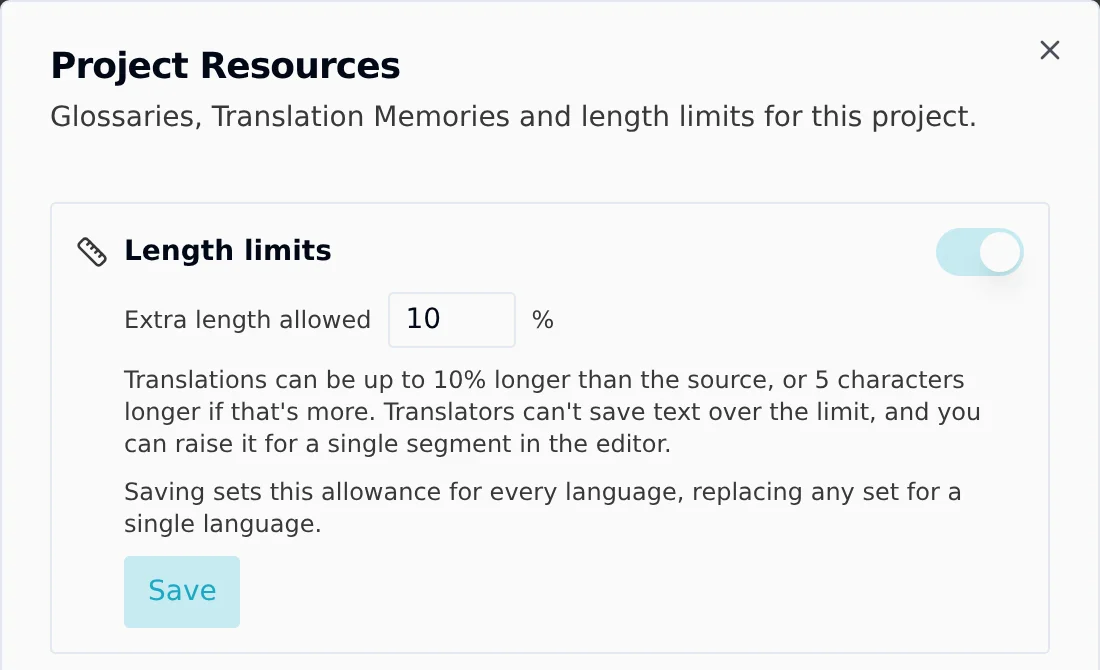
From then on, the limit is part of the work rather than something checked at the end:
- Translators and reviewers see a counter next to the segment they’re editing, such as
38 / 42. It turns yellow near the limit and red once the text is over. - Text over the limit can’t be saved. The editor says by how many characters it’s over, so the fix happens while the person still has the sentence in front of them.
- The Over length limit filter in the editor shows only the segments that need attention.
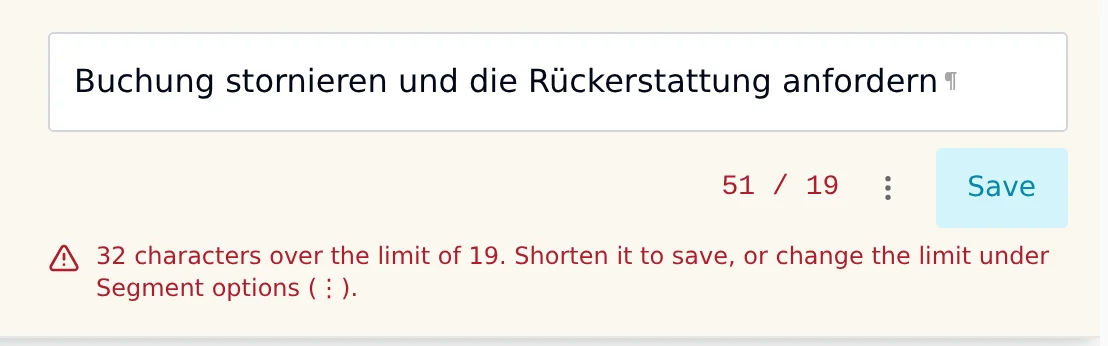
Some texts genuinely need more room, and that’s a judgment call a person should make. Whoever manages the project can raise the limit for a single segment, or set a fixed limit for every segment of one language, straight from the editor.
Let the AI do the shortening: Fit to length
Length limits show you what’s too long, and Fit to length goes a step further by having the AI fix it.
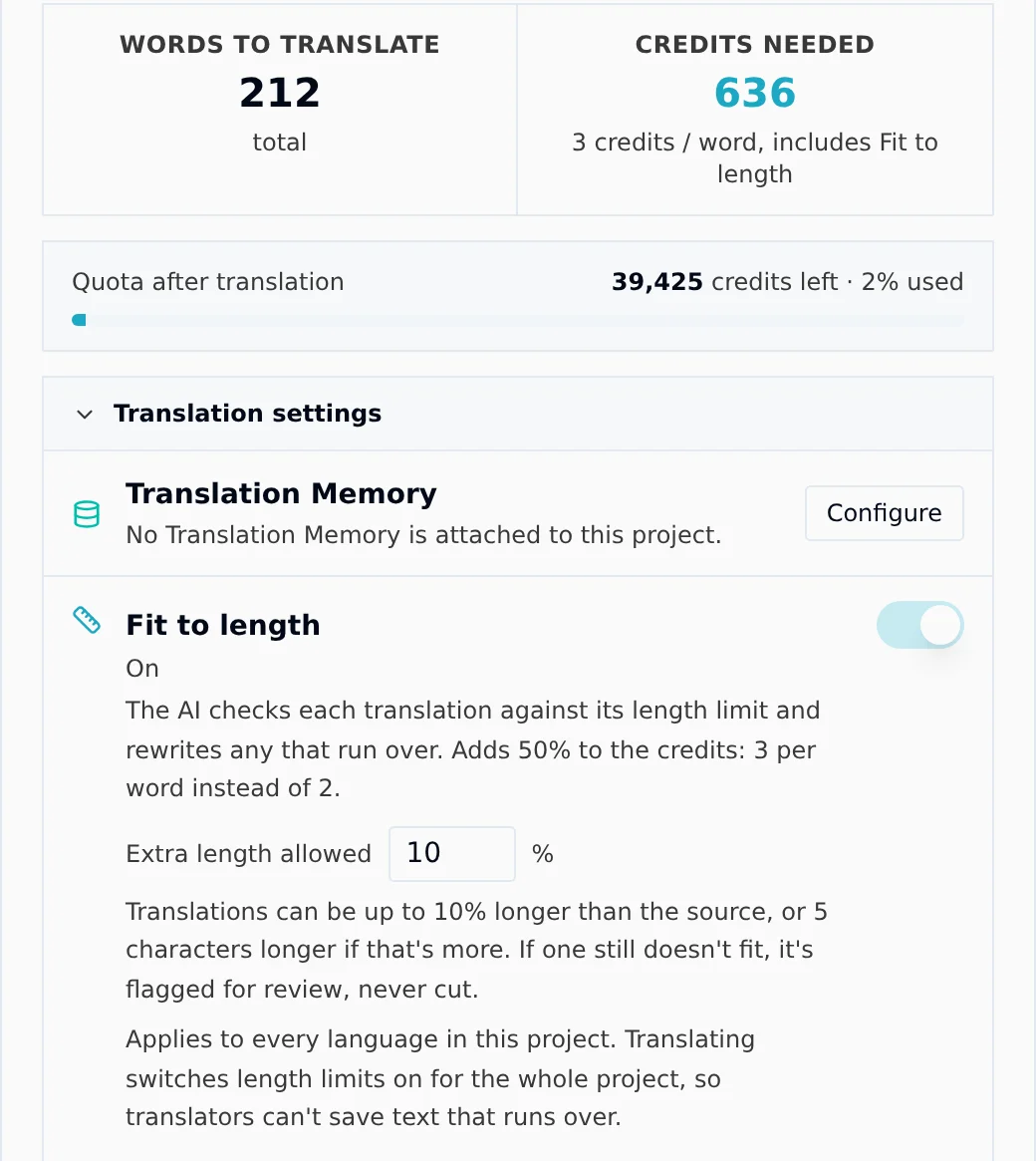
When you translate with Advanced or Premium AI, open Translation settings in the confirmation dialog and turn on Fit to length. The AI translates the project as usual. Taia then measures every translation against its limit and sends the ones that run over back to the AI to be shortened. There are up to two rounds, and each one only includes the segments that are still over.
The AI shortens the way a translator would: it looks for a shorter phrasing that still says the same thing. With the default 10% allowance, “Save changes” gets a limit of 17 characters (its 12, plus the 5-character minimum), so in the table above the French, German, Russian and Finnish labels are over. On a save button, “Enregistrer”, “Speichern”, “Сохранить” and “Tallenna” all say the same thing in 11 characters or fewer. It doesn’t chop words off the end.
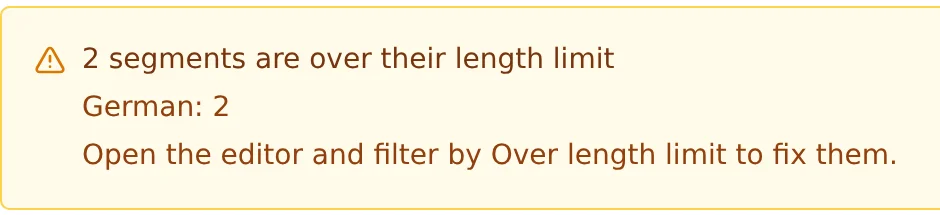
Nothing is ever cut off. If a segment still doesn’t fit after both rounds, it’s delivered as the AI wrote it and, if length limits are on for that language, marked Over limit. Short brand names and two-word headings are the usual ones, because there’s very little room to rephrase them. If length limits are on, the project’s AI translation page also shows how many segments are over, per language, so someone on your team can shorten those by hand or decide the longer text is fine.
What it costs
Fit to length uses 50% more credits than the same translation without it: 3 credits per word on Advanced instead of 2, and 6 on Premium instead of 4. The dialog shows the rate before you confirm, and Fit to length is never switched on by default, so you only pay for it on projects where length matters.
Advanced and Premium AI, and with them Fit to length, are part of the Pro and Enterprise plans. Both tiers also follow your translation memory, glossary and style guide, so the shortening round has your glossary and translation memory in front of it too.
When to switch it on
Turn on length limits for anything where the layout is fixed and somebody will notice when it breaks: app and website interface text, product listings with field limits, meta titles and descriptions, labels and packaging, and print layouts with fixed text boxes.
Leave them off for long-form text that can simply wrap: articles, manuals, contracts. A limit there only slows translators down.
The full setup, including who can change limits and what each screen shows, is in the help center: Keep translations within a length limit.

Project Manager & Content Writer
Eva is a project manager and occasional content writer who has honed her skills in marketing localization since 2019. Like most millennials, she's a Potterhead. She loves traveling and collecting bookmarks, used books, and vinyl.