TL;DR
- Most translation mistakes that reach customers aren’t grammar mistakes. They’re a product name translated three different ways, a bold heading that lost its bold, or a correction made in one place and forgotten in another.
- Those are exactly the mistakes a busy reviewer misses, and exactly the ones software is good at catching.
- Taia’s translation editor is built so the person reviewing only has to judge whether a sentence is right. It watches terminology, formatting and consistency in the background.
- Want the full feature list? The tour of the translation editor in our help center covers every panel and shortcut.
The reviewer is usually not a translator
In a lot of companies, the person reviewing the German catalog is whoever in the building speaks German. The export manager. The product specialist who grew up in Graz. The distributor’s sales rep, asked nicely.
They know the product better than any translator ever will, and they’re exactly the right person to say “no, we’d never call it that”. What they don’t have is time, or years of practice spotting a missing formatting code in a sentence that otherwise reads perfectly.
We learned this the hard way: when a translation goes wrong in front of a customer, the cause is rarely a sentence that reads badly. It’s the brand name that was translated on page 12, the warning that’s bold in English and plain in French, or the fix someone made to one safety instruction and not to its eleven identical twins.
So we built the editor around a simple idea: let the reviewer judge the language, and let the software handle the bookkeeping.
How the editor is laid out
Taia splits your file into segments, usually one sentence each. The original is on the left, the translation on the right. You click a sentence, fix it if it needs fixing, and press Ctrl+Enter to save and move to the next one.
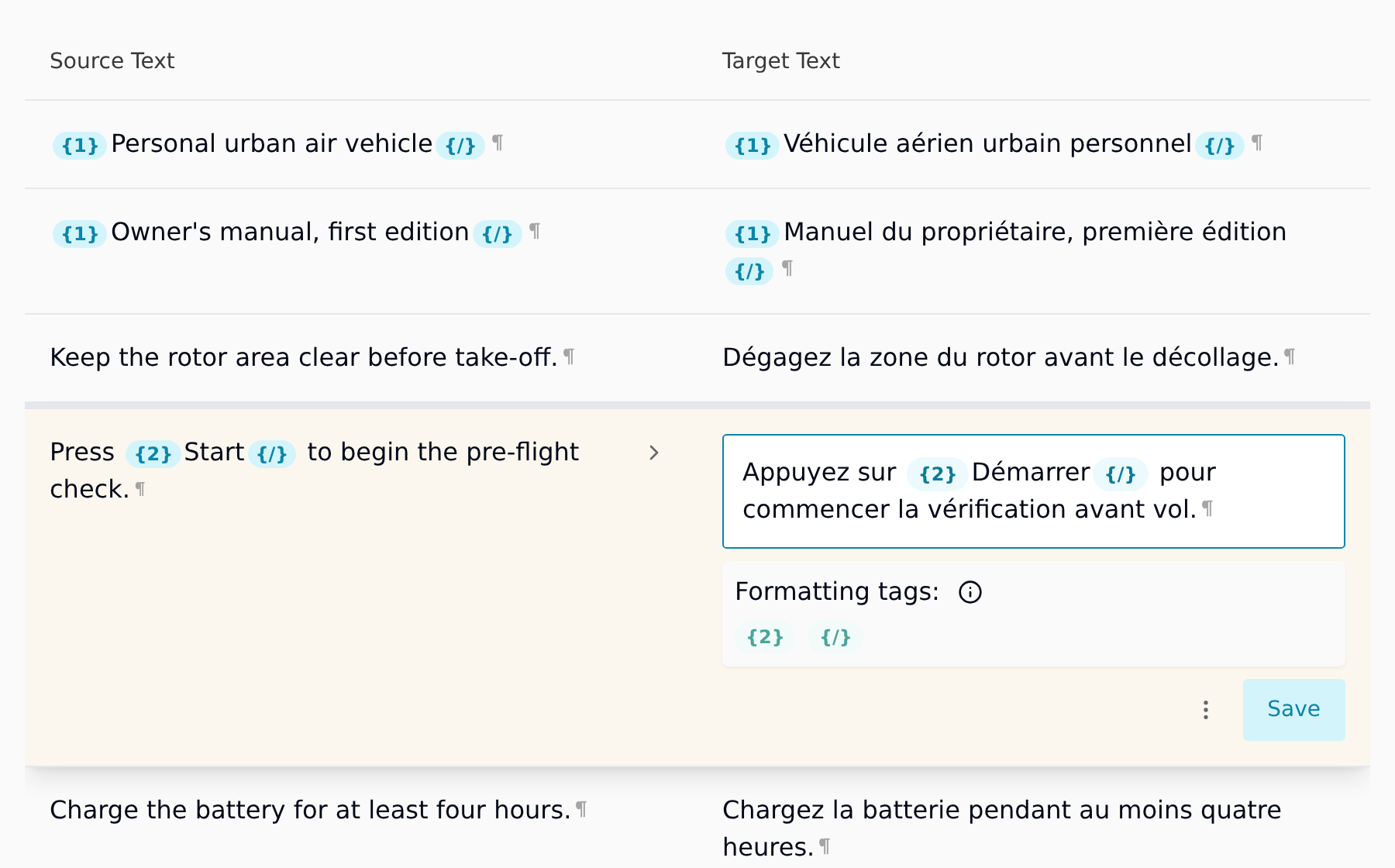
If a sentence is already right, you save it without changing anything, and it’s marked Confirmed. That matters more than it sounds: it means “someone looked at this and approved it”, which is different from “nobody touched it”. The progress bar counts edited and confirmed sentences alike, and Ctrl+U takes you straight to the next sentence nobody has looked at yet.
When you download the file, your edits are in it, with the layout and formatting of the original.
Five things the editor handles so you don’t have to
1. Your product names and approved terms
Attach a glossary to the project and the editor checks each sentence you open against it. If the approved translation of a term is missing, the Glossary panel says so and offers a one-click Insert. A small red number on the panel’s icon tells you how many terms are missing in the sentence you’re on.
For a reviewer, this turns “did anyone keep our product names consistent?” from a question you’d need a spreadsheet to answer into something you see on every sentence you open.
2. The formatting
Bold text, links and other formatting show up in the translation as small numbered tags, like {1} and {/}. They look a bit technical, but the rule is simple: keep them around the same words as in the original.
The editor keeps count for you. Below the sentence you’re editing, each tag is shown as present, missing or out of place. Click a missing one, or press Alt+T, and it goes back in. If a tag is missing or out of order, the sentence won’t save until it’s fixed.
That can feel strict the first time it happens. It’s also the reason the file you download opens with its formatting intact, instead of a heading that has quietly lost its bold.
3. Sentences that appear more than once
Manuals and catalogs repeat themselves. A safety instruction can appear dozens of times in one document. Fixing it once and missing the other occurrences is one of the most common review mistakes there is.
With auto-propagate switched on, saving a sentence copies your translation to every identical sentence in the job. If some of those already hold a different translation that someone wrote by hand, the editor doesn’t overwrite them silently. It shows you both and lets you choose.
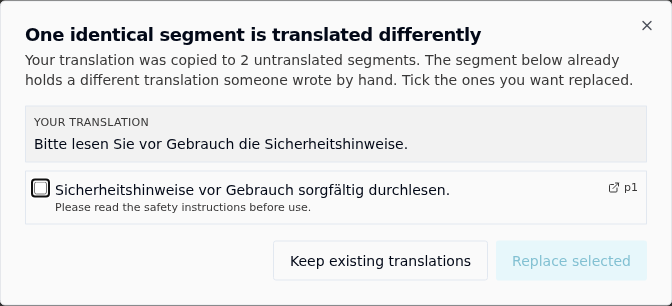
A separate Identical segments panel lists every repeated sentence in the job and puts the inconsistent ones first, so you can clean them up in one pass.
4. Bulk changes
Marketing renamed the product the day before launch. It happens.
Find & Replace changes a word across the whole job, not just the page you’re looking at. Before it changes anything, it tells you how many sentences will be affected, how many of those were already approved and will need another look, and how many matches in locked sentences it will skip. Then you confirm. No surprises in the downloaded file.
5. Spelling and capitals
The editor spellchecks the translation in the target language as you type. For most European languages you don’t need to install anything in your browser. Right-click an underlined word for suggestions.
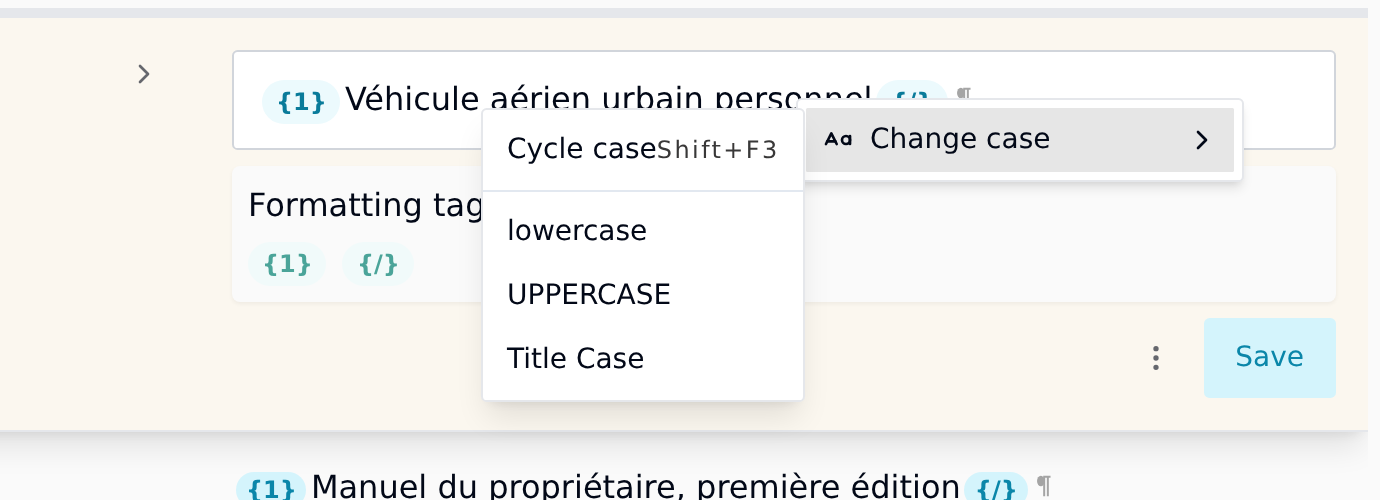
Right-click also changes letter case, and Shift+F3 cycles a selection through lowercase, UPPERCASE and Title Case. It’s handy when a heading arrives in capitals and your language writes headings in sentence case.
Start with a free AI translation
Upload a file and see how Taia handles your formatting and terminology. When you’re ready to review it sentence by sentence, the editor comes with Pro and Enterprise.
Start translating free →When you do want a second opinion
The checks cover the bookkeeping. For the language itself, a few things help when you’re not sure.
Ask the AI for another version. The AI Suggestion panel re-translates the sentence you’re on, and you can add an instruction such as “more formal” or “shorter, this is a button label”. You see the credit cost before you commit.
Check what’s been approved before. The Translation Memory panel shows how similar sentences were translated in earlier projects, with the differences highlighted. When a translation memory is attached to your project, every sentence you save goes into it, so the AI’s first draft next time starts closer to what your team approved. It’s your own translation memory, not a shared model: nobody trains on your content. (It won’t make the AI translation cheaper: credits are charged on the full word count either way. What gets shorter is the review.)
Check the house rules. If the project has a style guide, the Style Guide panel shows it right inside the editor: formal or informal, date formats, words to swap for others.
Leave a note where it belongs. Comments sit on the sentence they’re about, so nobody has to describe “the third bullet on page 14” in an email, and everyone on the project can see them. When your Taia project manager asks you to review a professional order, you can also leave notes the linguists don’t see.
Hand it to a professional. If a document matters too much to review in-house, you can order professional localization from the same project.
For the translators reading this
If you do this for a living, you’ll feel at home. There’s a keyboard shortcut for nearly everything (Ctrl+Enter, Ctrl+U, Ctrl+1 to Ctrl+3 for translation memory matches, Ctrl+H for Find & Replace, Alt+T for tags), formatting marks for spaces, non-breaking spaces and tabs, and error annotations with MQM-based categories and severities. The keyboard shortcuts reference has the full list.
Frequently Asked Questions
Do I need to know what a CAT tool is to use the editor?
No. CAT stands for computer-assisted translation, and it just means translating or reviewing one sentence at a time with helpers alongside. If you can edit a document, you can use the editor.
Which plans include the translation editor?
The editor is part of the Pro and Enterprise plans. See pricing for what each plan includes.
What happens to the formatting of my file?
Formatting is carried through as tags, and the editor won’t save a sentence with a missing or misplaced tag. When you download, the translated file keeps the layout of the original.
Do my corrections get reused?
Yes. When a translation memory is attached to the project, every sentence you save goes into it. On the next project, those approved translations guide the AI’s first draft and show up as matches while you review.
Can several people review the same project?
Yes. An organization or team manager can assign review tasks to different people, and everyone can comment on individual sentences. See assigning work to a teammate in the help center.
Where can I see everything the editor does?
The tour of the translation editor walks through every panel, and each section links to a step-by-step guide.

Project Manager & Content Writer
Eva is a project manager and occasional content writer who has honed her skills in marketing localization since 2019. Like most millennials, she's a Potterhead. She loves traveling and collecting bookmarks, used books, and vinyl.