TL;DR
- An Illustrator file can’t go into a translation tool as it is, so most teams copy every text box out, send the text off, and paste the translation back in by hand. On a one-page manual that’s an afternoon, and it goes wrong in predictable places.
- We’ve published two free scripts for Adobe Illustrator: Taia Export XLIFF puts all the text of an open
.aifile into one XLIFF file, and Taia Import XLIFF puts the translation back into the same layout and saves it as a new file. - Bold or italic words inside a sentence travel as tags, headings that were split into separate pieces are joined back into one line, and anything that no longer fits is outlined on a layer that doesn’t print.
- Upload the XLIFF to Taia and translate it with AI, a translator, or both, then import it back. Or send us the
.aifile and our team does the Illustrator part. Step by step: Translate Adobe Illustrator files.
Why Illustrator files are awkward to translate
Plenty of companies lay out their short documents in Illustrator: a one-page product manual, a quick-start sheet, a label, a technical data card that goes in the box. Illustrator handles them well, but it’s an awkward source for translation, because it keeps text in dozens of separate objects and most translation tools don’t read .ai files directly.
So the usual process looks like this. Someone opens the file, copies each text box into a Word document, sends it to a translator, gets it back, and pastes every line back into the right box. Then they do it again for the next language.
Take a typical one-page product manual, in English, to be translated into German. One we tested had:
- 61 text objects for about 290 words. Around twenty of them were empty, left over from earlier edits.
- A headline split into five pieces, some of them a single letter, which is what happens when a designer kerns a headline by hand. A section heading was split in two the same way.
- Bold words inside sentences. A warning that opened with a word in bold italic, and short labels in bold in the middle of a paragraph.
- Hidden placeholder text under a logo. One sentence contained the product name as invisible text, with the logo placed on top of it, so the logo appears to sit inside the sentence.
Copy-paste loses the bold words, turns the split headline into nonsense (a translator gets a few loose fragments and can’t do anything with them), and makes it easy to miss the empty boxes and the hidden text. Each of those is fixable by hand, and each one costs a round of proofs.
What the scripts do
The two scripts run inside Illustrator (File > Scripts). We’ve tested them on Windows, and nothing in them is Windows-specific, so they should run on macOS too. They’re free, and you can download them from our help center.
Taia Export XLIFF reads every text object in the open file and writes one XLIFF file next to it. XLIFF is the standard exchange format for translation, so Taia and most translation tools can open it. Along the way it:
- puts the text in reading order, top to bottom and left to right, so a translator sees the label next to its value instead of in the order the objects were created
- keeps formatting changes inside a sentence as tags, so a warning word in bold italic stays that way in German too
- joins headlines that were split into separate objects back into one line
- keeps forced line breaks and tabs, and makes each paragraph its own segment
- skips empty boxes and text with no letters in it, like “12 34”
- notes hidden placeholder text, so the translator knows a logo sits on top of it
Taia Import XLIFF takes the translated XLIFF and puts every segment back into the object it came from, with the bold, the colors and the paragraph settings re-applied. It sets the hyphenation language of the translated text, so German hyphenates like German. It never touches the original: the result is saved as a new file, for example manual_de-DE.ai, with a short report next to it.
Then it marks what a person should look at. Text that no longer fits its box, point text that grew a lot wider, and lines with a logo over hidden text are outlined in red on a layer called “Taia QA (not printed)”. On the manual above, our Advanced AI’s German went back into the file in under two seconds, and the QA layer pointed at three things: the first paragraph, which ran longer in German and no longer fit its box, one label that had become 30% wider, and the sentence with the logo in it, where the logo now needed moving.
Here’s the same check on a quick-start card for the Skyline S, from Volta Air, our made-up flying car company:
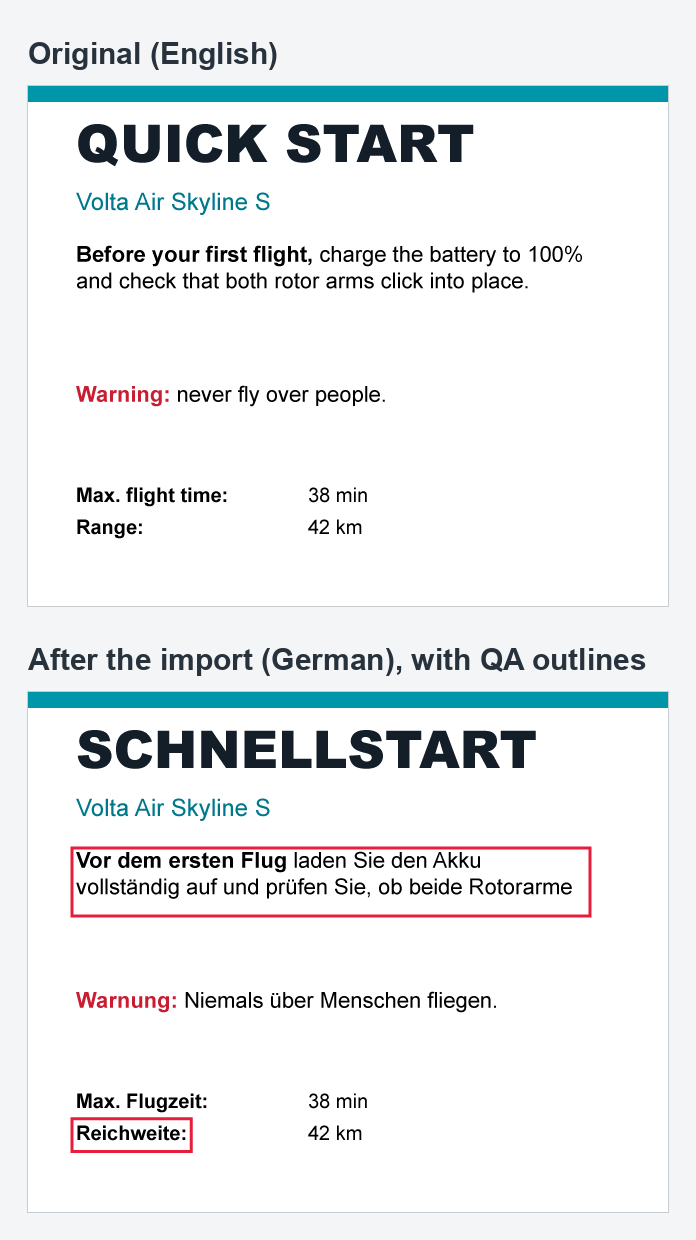
The red outlines are the QA layer: they mark text a person should check after the import, and they don’t print.
If someone edits the Illustrator file between the export and the import, the script copes with most of that. Every segment is checked against the text it came from, and if objects were added or deleted in the meantime, it finds the text by its content instead. Anything it can’t find is listed in the report rather than guessed.
Two ways to get it translated
Translate the XLIFF in Taia. Upload the XLIFF as a new project and translate it into any of 204 languages with our AI. The AI translation is a first draft, and a translator on your team, or one of ours, can review it in the Translation Editor before you download it. Your glossary and translation memory work here like they do for any other file, so the product name and the terms you’ve already approved come out the way you’ve approved them. XLIFF files are part of the Pro plan. In our test, the AI put every tag back around the right words, and a reviewer can move one in the editor if it doesn’t.
Send us the .ai file. If you’d rather not run scripts at all, send us the file. Our team exports it, a professional translator translates and checks it, we import it back, fix what the QA layer flags, and you get back an Illustrator file ready for print. We call the Illustrator part DTP (desktop publishing), and we’ll quote it for you up front.
What still needs a person
The scripts move text; deciding what the page should look like in German is still a person’s job. A German sentence that runs 30% longer still needs someone to decide whether the box grows, the font shrinks, or the sentence gets shorter. Text that’s been converted to outlines isn’t text any more, so it won’t be exported, and neither will text inside placed images.
That’s why the import outlines problems instead of fixing them on its own. A designer still has the last word on the layout, and starts from a short list of what moved instead of checking every box on the page.
The full walkthrough, with installation steps, is in the help center: Translate Adobe Illustrator files. If you’ve got an Illustrator file you’d like to try it on, send me a message and I’ll set you up with a free trial.

CEO & Co-founder
Matija co-founded Taia in 2018 and leads the company as CEO. He is the creative force behind Taia's technology direction, blending linguistic expertise with a technologist's approach to translation.